
Introduction
In today’s data-driven landscape, grassroots soccer clubs face numerous operational challenges: tracking registrations, managing rosters, reconciling payments, and analyzing player performance. As clubs grow, manually stitching together disparate spreadsheets becomes not only time-consuming but also error-prone. This is where mastering data joins in R can transform your workflow from reactive firefighting to proactive, strategic decision-making.
Why Joins Matter
- Consolidation of Data Sources
Data often lives in separate silos—Google Forms for sign-ups, Excel sheets for payments, CSV exports from league platforms. Joins let you merge these tables by a common key (e.g.,player_id), eliminating manual copy-paste and mismatches. Most platforms—like RecTrac or Oracle systems—automatically generate a unique key for you, making the merge even smoother. - Automated Reconciliation
A singleleft_join()flags who’s paid and who hasn’t in one go, replacing hours of VLOOKUPs. - Scalable Insights
As your club adds teams or programs, the same join logic scales—no need to rebuild spreadsheets from scratch. - Reproducibility & Audit Trail
Every join is a documented step in your R script. Version control your code, and you can always trace exactly how reports were generated.
Use Case: Roster vs. Payments
Scenario
roster.csv: Player demographics, team assignments, and program fees.payments.csv: Transaction records withamountandpayment_date.
You want one table that shows each player alongside their raw payment data—no summaries yet, just the straight merge.
Quick note:
If any of the R terms or symbols feel unfamiliar, scroll to the “Cheat Sheet: Terms, Symbols & Libraries” section at the bottom of this post. It gives you a one-line definition, an Excel analogy, and a snapshot of every package we’ve used so far.
Step-by-Step in RStudio
- Load libraries and read data
library(dplyr)
library(readr)

# NOTE ────────────────────────────────────────────────
# Replace the paths below with wherever your club
# stores its CSVs (e.g., "C:/Users/Coach/Data/roster.csv").
# Using forward slashes ( / ) works on Windows and macOS.
# ─────────────────────────────────────────────────────

roster   <- read_csv("data/roster.csv")      # e.g. "C:/ClubData/roster.csv"
payments <- read_csv("data/payments.csv")    # e.g. "C:/ClubData/payments.csv"
Perform the basic join
registration_status <- roster %>%
  left_join(payments, by = "player_id")
That single line:
- Keeps all rows from
roster - Brings in matching
amountandpayment_datefrompayments - Leaves NAs where no payment exists
- Duplicates rows for players with multiple payments (one per transaction)
A quick look at Datasets Before & After performing the Join
Before
File Name: roster
| player_id | first_name | team | program_fee | amount | payment_date |
| 1 | Alex | U14 Girls | 300 | 300 | 2025-06-10 |
| 2 | Bianca | U14 Girls | 300 | 150 | 2025-06-12 |
| 2 | Bianca | U14 Girls | 300 | 150 | 2025-06-15 |
| 3 | Kane | U12 Boys | 250 | 250 | 2025-06-08 |
| 4 | Daniel | U12 Boys | 250 | NA | NA |
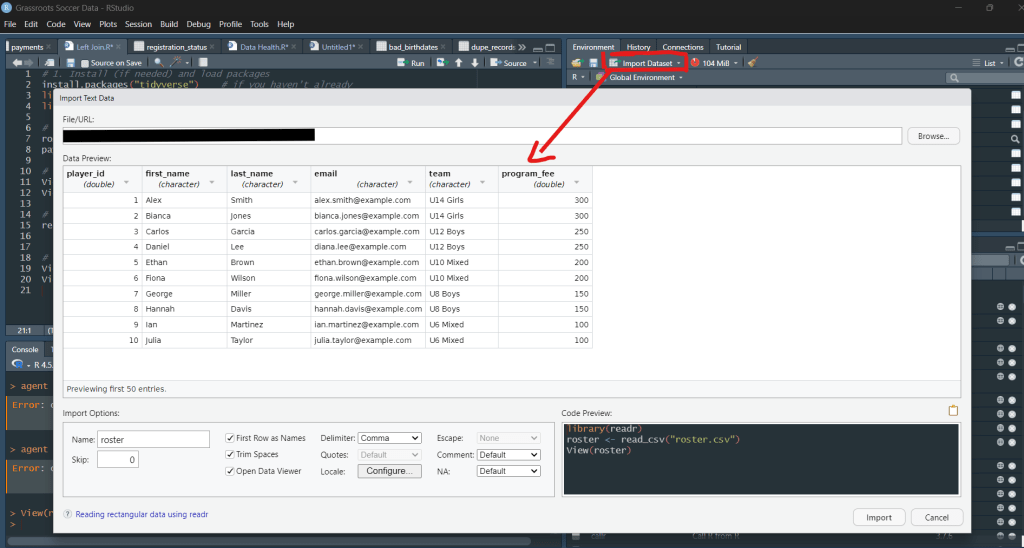
To view your dataset in R Studio use the view(datasetname) So in Our vase its View(roster)
Download File Here:
Note: This is an Excel Workbook, you can save it as a csv or replace -> read_csv(“data/roster.csv”) with read_excel(“roster – july 8th.xlsx”)
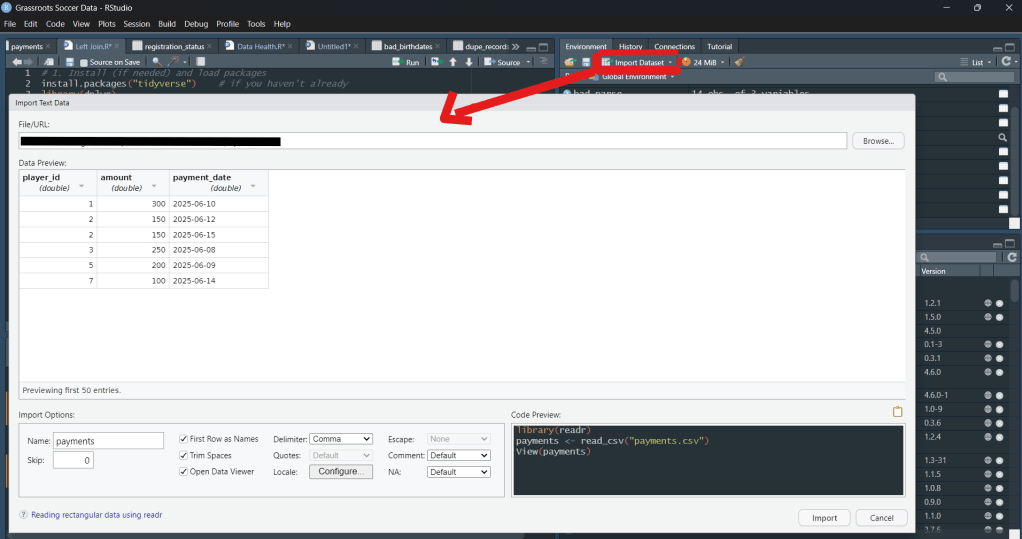
File Name: payments
Each table alone is useful, but you can’t easily answer: “Which players haven’t paid?” or “Show all payment records alongside roster info.”
| player_id | amount | payment_date |
| 1 | 300 | 2025-06-10 |
| 2 | 150 | 2025-06-12 |
| 2 | 150 | 2025-06-15 |
| 3 | 250 | 2025-06-08 |
| … | … | … |
| 7 | 100 | 2025-06-14 |
Note: This is an Excel Workbook, you can save it as a csv or replace -> read_csv(“data/payment.csv”) with read_excel(“payments.xlsx”)
After
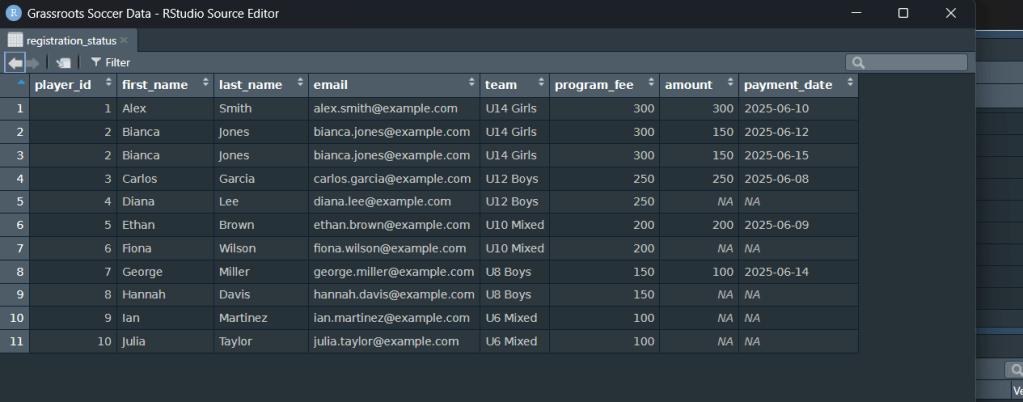
File Name: registration_status
| player_id | first_name | team | program_fee | amount | payment_date |
| 1 | Alex | U14 Girls | 300 | 300 | 2025-06-10 |
| 2 | Bianca | U14 Girls | 300 | 150 | 2025-06-12 |
| 2 | Bianca | U14 Girls | 300 | 150 | 2025-06-15 |
| 3 | Carlos | U12 Boys | 250 | 250 | 2025-06-08 |
| 4 | Daniel | U12 Boys | 250 | NA | NA |
Why the new File Name?
Every join produces a new table. We’re calling it registration_status (with an underscore) so it’s clear this object is not the raw roster or payments file.
Underscores are a good habit—R treats spaces in object names as errors, and snake_case keeps things readable.
After the Join – What You Should See
Do you see how each player from roster is still there, but now:
- Paid players have their
amountandpayment_datefilled in. - Unpaid players show
NAin those columns—instantly flagging who still owes. - Players with multiple payments (like Bianca’s two installments) appear on two rows, giving you the full transaction history in one place.
That single line of code has already replaced an hour of VLOOKUPs, copy-pasting, and manual checks—clean, repeatable, and ready for the next step
Key Takeaways
- Preserve all records:
left_join()keeps every player on your roster, even if they haven’t paid (it fills missing payments withNA). - Surface multiple transactions: Players with more than one payment appear on separate rows, Preserving the full transaction history.
- Highlight gaps instantly: Unpaid or partial-payment records are easy to spot via
NAin the payment fields, enabling quick follow‑up. - One command, big impact: A single line of code replaces manual merges/VLOOKUPS, ensuring accuracy and scalability saving hours in the long run
Conclusion
Mastering basic data joins in R is a powerful first step toward transforming how your club handles day‑to‑day operations. With a single left_join(), you:
- Consolidate multiple data sources into one unified view
- Maintain a complete record of every player, payment, or transaction
- Surface discrepancies and gaps in seconds, not hours
- Lay the groundwork for deeper analyses and automated reporting
Quick Reference: R Terms & Symbols (Excel Translations Included)
Keep this cheat-sheet handy; with just these building blocks you can read, combine, and inspect club data faster than any spreadsheet workflow.
| Term / Symbol | Plain-English Meaning | Excel / Sheets Analogy | Why You Saw It Here |
|---|---|---|---|
# | Comment marker—code to the right is ignored when the script runs. | A note typed in a cell that doesn’t affect formulas. | Used to leave reminders (e.g., “Replace this file path”). |
library() | Loads an add-on package so its functions become available. | Enabling an Excel Add-In (e.g., Power Query). | We loaded: dplyr – data manipulation readr – fastest CSV import lubridate – easy date handling |
%>% | Pipe operator—“and then.” Passes the result of the left step to the right step. | Chaining steps in Power Query’s Applied Steps pane. | Makes the data-prep pipeline read top-to-bottom. |
<- | Assignment arrow—“put what’s on the right into the object on the left.” | Typing =… into an Excel cell, but for entire tables. | registration_status <- … saved the joined table for later use. |
| Dataset / tibble | An in-memory table (rows + columns) managed by R. | A worksheet (but handled entirely in RAM). | roster and payments are tibbles you imported. |
| Join | Combine two tables by matching a key column (here, player_id). | VLOOKUP or XLOOKUP that pulls columns from another sheet. | left_join() added payment columns to every roster row. |
| Left Join | Keep all rows from the first table; pull matching rows from the second. | “Show all roster rows—even if no payment match.” | Guarantees unpaid players aren’t lost. |
NA | “Not Available”—a missing value. | A blank cell returned by VLOOKUP when no match is found. | Highlights unpaid players or absent data. |
Packages Used in This Script
| Package | One-line Purpose |
|---|---|
| dplyr | Verbs like filter(), group_by(), left_join()—the core of tidy data wrangling. |
| readr | Super-fast CSV/TSV import (read_csv()), with sensible defaults. |
| lubridate | Human-friendly date parsing (ymd(), mdy()) and comparisons. (Used later for birth-date checks.) |
 pivotfootball